Choose a useful source
Upload authorized audio or select an eligible Creatune song. A complete file with audible rhythm, harmony, and sections gives the model a more stable arrangement reference.
Add vocals or instrumentals to your existing songs
 Examples
 Examples
 Examples
 Examples
 Examples
 Examples
AI arrangement workspace
AI Add Tracks expands an existing song without asking you to rebuild it from zero. Start with a demo, instrumental, vocal idea, or finished Creatune track, then describe the part the arrangement is missing. The tool generates a new vocal or instrumental direction that works around the source audio.
This hub is useful when the original melody, timing, and mood already matter. You can explore a lead vocal, harmony, guitar, piano, drums, strings, synth texture, or another clearly described layer while keeping the source as the musical reference.
Results are strongest when the input is clear and the request has one job. Use audio you own or may transform, name the role of the new part, and review the generated mix before publishing or continuing production.

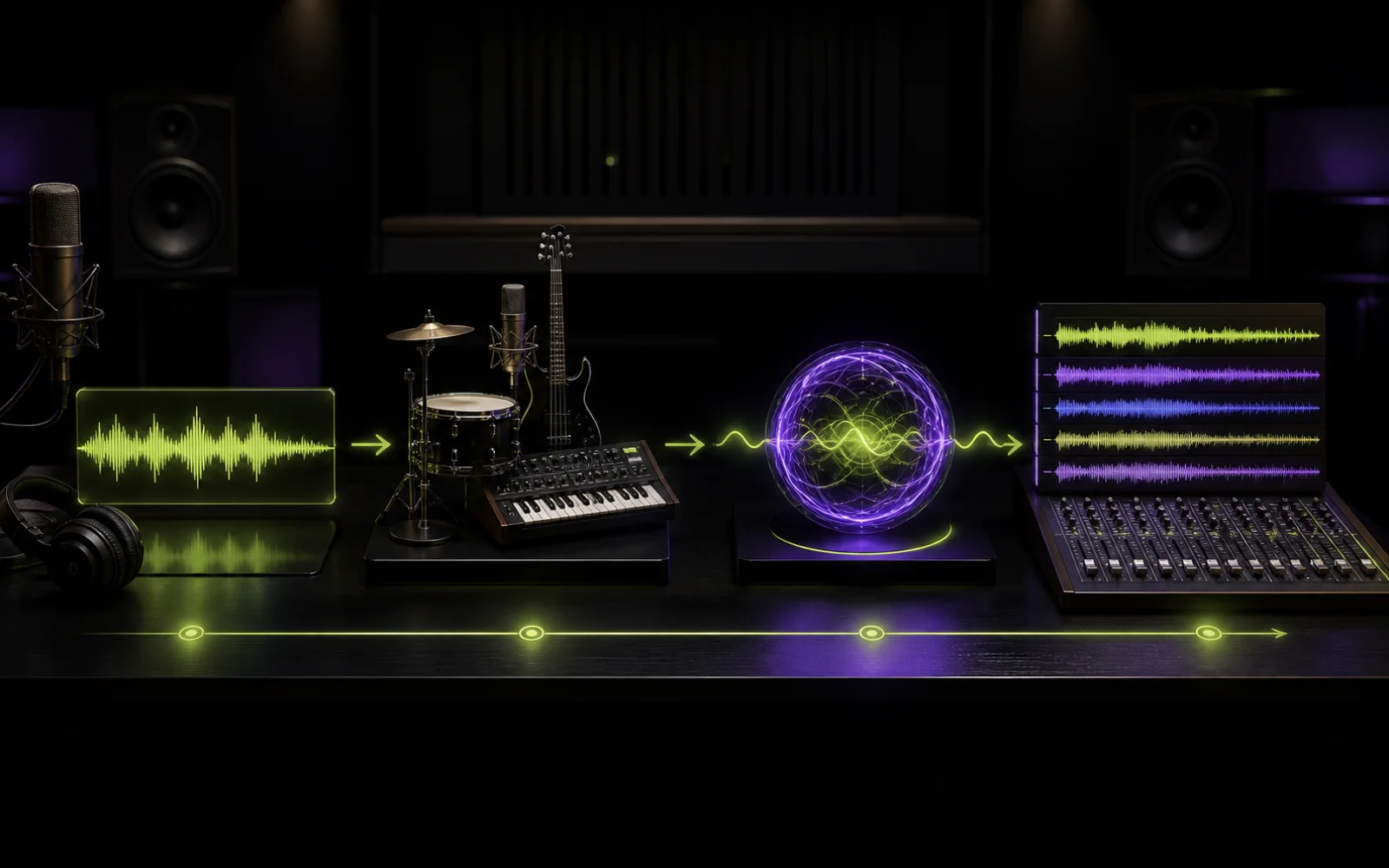
Four-step workflow
Separate the source, missing part, musical brief, and review into clear decisions.
Upload authorized audio or select an eligible Creatune song. A complete file with audible rhythm, harmony, and sections gives the model a more stable arrangement reference.
Pick vocals for a singer, lyric, hook, or harmony. Pick instrumental for guitar, keys, drums, strings, synths, percussion, or another supporting layer.
State what should enter, where it should sit, and how it should feel. Mention genre, energy, tone, register, and arrangement role instead of stacking vague adjectives.
Listen for timing, balance, transitions, and whether the new part supports the song. Refine one variable at a time so successful choices are not lost.
Workflow comparison
Choose by the production decision you need to make, not by the broadest tool name.
| Workflow | Best when | What changes |
|---|---|---|
| Add Tracks | You are still deciding which missing layer matters | Adds a selected vocal or instrumental direction around the source |
| Add Vocal | The song needs singing, lyrics, a hook, or harmony | Focuses the brief on a generated vocal performance |
| Add Instrumental | The song needs a musical part or arrangement support | Focuses the brief on instruments, rhythm, and texture |
| Song Cover | The whole performance or style should be reinterpreted | Creates a broader voice or style transformation |
Creative uses
Use the new layer to solve a specific listening problem rather than making the mix busy.
Explore a lead vocal, lyric concept, or harmony over a backing track that already has the right groove.
Add piano, guitar, strings, pads, percussion, or drums when the composition works but the arrangement feels empty.
Compare intimate, cinematic, organic, electronic, or rhythm-led layers before rebuilding the idea in a full session.
Ask for a restrained countermelody, atmosphere, backing vocal, or pulse that supports the focal part instead of competing with it.
Better source, better brief
The model needs to hear the source clearly and understand the new layer's musical job.
Avoid long silence, missing endings, severe clipping, and loud unrelated noise. Leave enough dynamics for a new part to fit.
Start with one lead request such as warm alto vocal, muted funk guitar, or soft cinematic strings. Add secondary detail only when it clarifies that role.
Say whether the part should answer the vocal, reinforce the chorus, stay behind the melody, or build toward the final section. Relationships are more useful than isolated style words.
Only use audio you own or are authorized to transform. Generated additions may need editing and do not replace permissions for the source recording, composition, lyrics, or voice.

Plans and credits
Use AI Add Tracks with flexible monthly, annual, or one-time credits shared across Creatune.
12,000 credits/year
billed annually
Save 33% — Limited Time Offer!
30,000 credits/year
billed annually
Save 50% — Limited Time Offer!
84,000 credits/year
billed annually
Save 56% — Limited Time Offer!
Credits per year
84,000
After payment, credits activate automatically for Creatune AI music, lyrics, audio editing, and music video workflows.
The payment methods shown at checkout vary by country, device, currency, and your Stripe configuration.
Add Tracks questions
It is a music arrangement workflow that uses an existing song as context and generates a new vocal or instrumental direction around it. It is intended to extend a source, not merely place a stock loop on top.
Yes. Choose the vocal direction and describe the desired lyric idea, vocal character, mood, and role. For a more focused explanation and workflow, use the dedicated Add Vocal page.
You can request guitar, piano, drums, strings, synths, percussion, or other parts. Cleaner sources with some arrangement space usually make it easier for a new layer to feel intentional.
Add Tracks keeps the source as the center and supplies a missing layer. Song Cover is for a broader reinterpretation of voice, genre, mood, or arrangement.
Name the part, its musical role, energy, tone, and relationship to the source. A focused direction such as restrained cello counterline under the chorus is clearer than a long list of unrelated styles.
Only upload and transform audio you own or have permission to use. Creating a new layer does not remove rights attached to the source recording, composition, lyrics, or a person's voice.
Choose a clear source, describe one useful vocal or instrumental addition, and generate a fuller arrangement without starting over.
Add tracks to my song